Generate
Create a new image from a text description.
GPT Image 2
Create detailed images, edit existing visuals, and work from high-fidelity references with GPT Image 2. Use natural-language instructions to build product images, photography, illustrations, posters, marketing assets, and structured visual content in the size and composition your project needs.
GPT Image 2 • Released April 2026
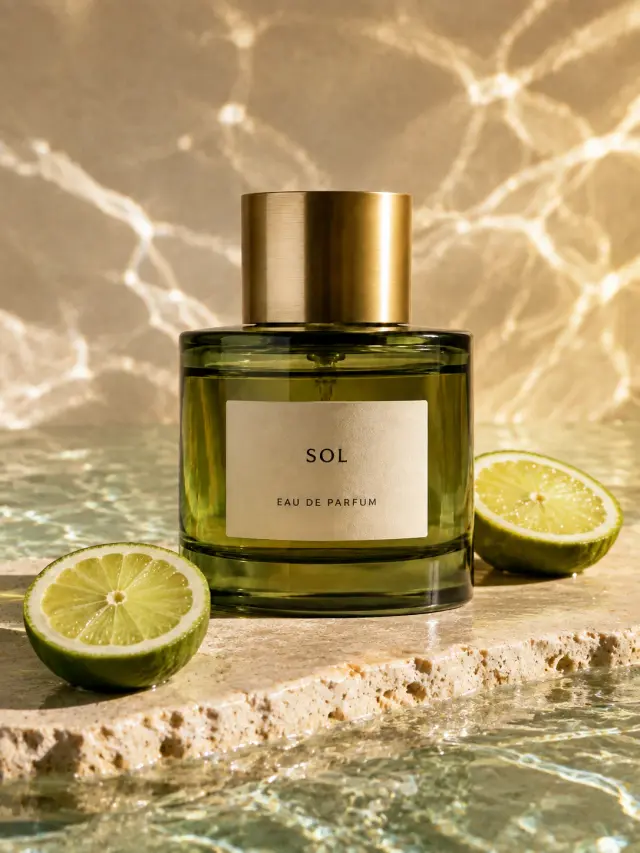
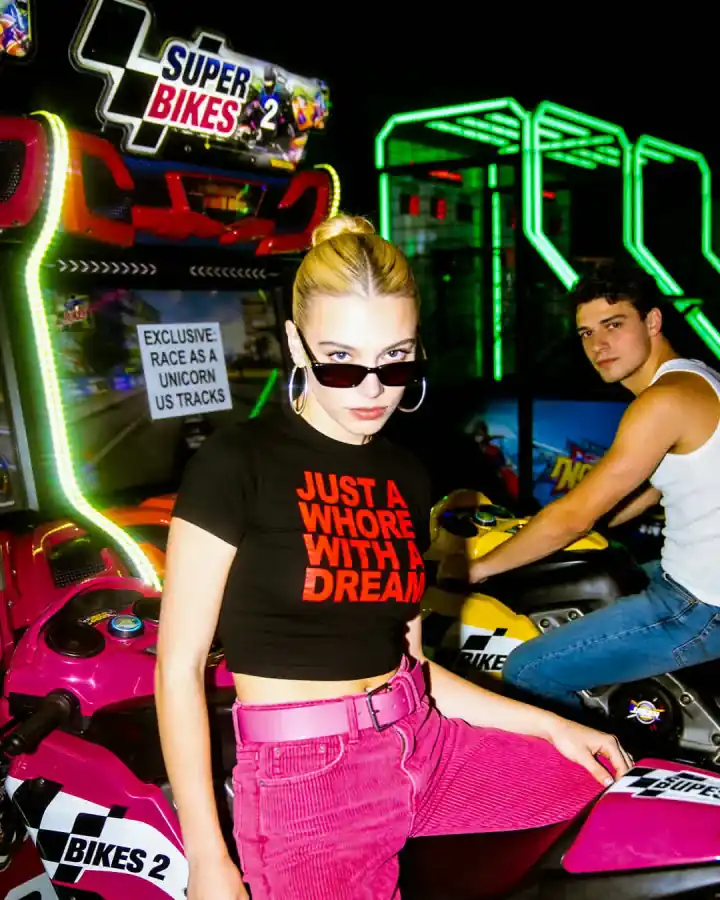
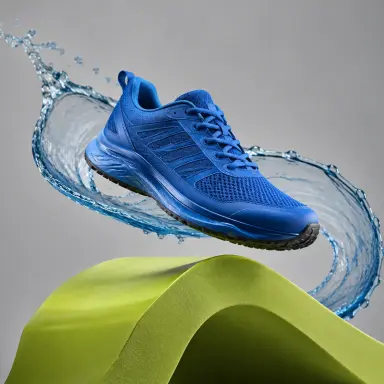
Start from a written idea or upload an image for a supported editing or reference workflow. Describe the result you want, configure the options currently available in the generator, and refine the strongest output instead of rebuilding every idea from the beginning.
Create a new image from a text description.
Upload an existing image and describe the change you want to make.
Guide the result with visual source material when an object, person, product, layout, or creative direction is easier to show than describe.
GPT Image 2 is designed for image workflows that need more than a simple prompt-to-picture result.
GPT Image 2 processes image inputs at high fidelity, making it useful when important details from a source image need to guide the result.
Use natural-language instructions to change selected parts of an existing image while preserving the useful foundation of the original.
The model supports a broad range of image dimensions for square, portrait, landscape, advertising, presentation, and other visual formats.
Use GPT Image 2 for posters, diagrams, infographics, covers, promotional graphics, and layouts where composition and text both matter.
Create product imagery, campaign concepts, presentation assets, social creative, and other visuals intended for practical design workflows.
GPT Image 2 can move from a written concept to a finished visual, or use an existing image as the foundation for a more controlled result.
Text to Image
Describe the subject, environment, composition, lighting, materials, style, and intended use.
Reference Image
Use a source image when appearance, identity, product details, or composition would be difficult to communicate with words alone.
Image Editing
Keep a strong source image and request targeted changes to the subject, background, lighting, objects, text, color, or visual treatment.
GPT Image 2 is an OpenAI image-generation and editing model released in April 2026. It accepts text and image inputs and is designed for high-quality image creation, detailed editing, flexible dimensions, and high-fidelity reference workflows.
Create new visuals by describing the intended image in natural language.
Use images as inputs for editing or reference-based creation and generate a new image as the result.
GPT Image 2 automatically processes image inputs at high fidelity in its model-level workflow.
The model supports custom image dimensions within its technical size constraints rather than only a small set of fixed aspect ratios.
Change an existing image through natural-language instructions while guiding what should remain and what should change.
At the model level, GPT Image 2 supports low, medium, high, and automatic quality selection. The DoMax AI interface determines which options are currently exposed here.
A good prompt defines the visual result instead of only naming the subject.
Prompt
A premium wireless speaker on a dark stone pedestal, soft side lighting, subtle atmospheric haze, brushed aluminum details, luxury product photography, low camera angle, centered composition, deep charcoal background.
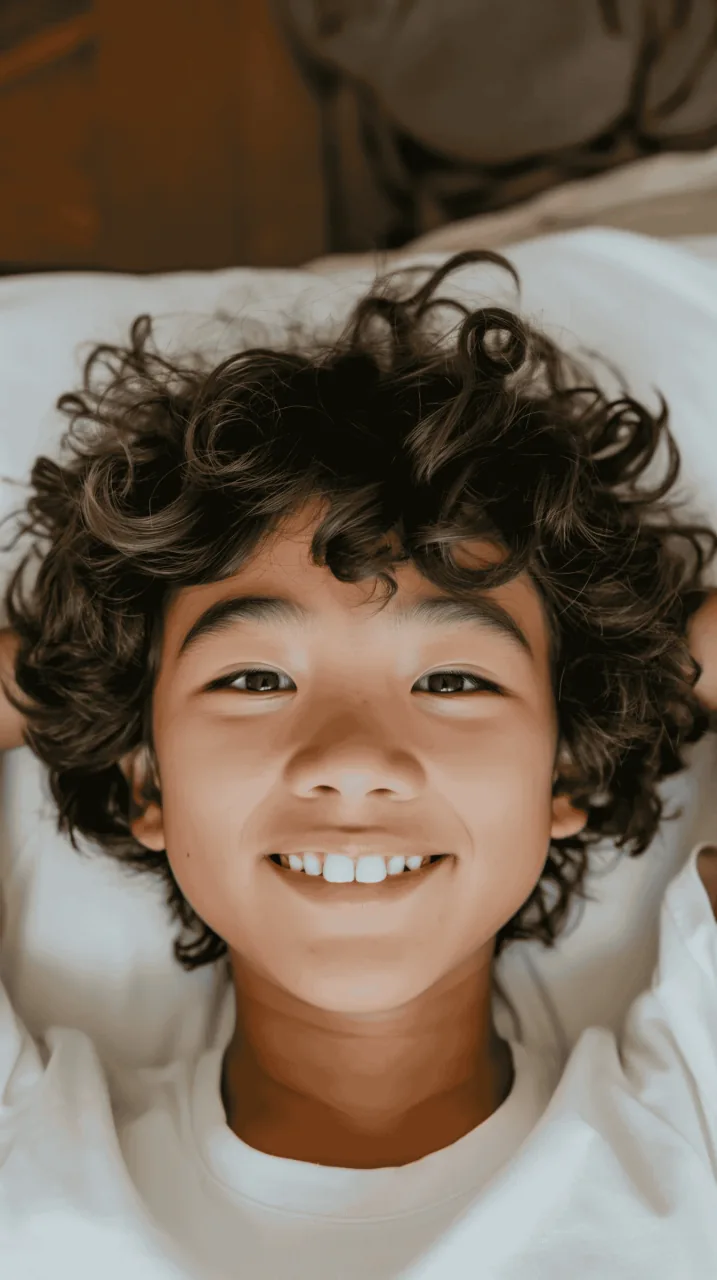
Define the person, object, product, character, or scene.
Describe the setting and what surrounds the subject.
Specify photography, illustration, editorial, graphic design, realism, materials, lighting, or another visual approach.
Define framing, camera angle, depth, layout, placement, and relationships between important elements.
GPT Image 2 automatically processes image inputs at high fidelity, making reference-driven workflows one of its most useful capabilities.
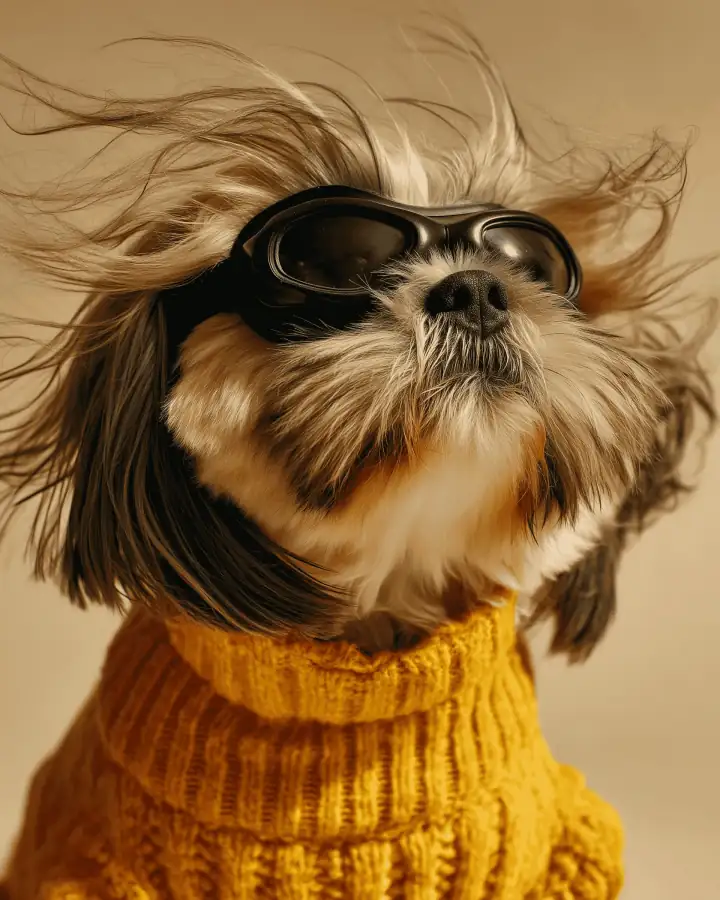
Use a source image to guide recognizable product shape, materials, colors, and visual details.
Use an image when important appearance details should carry into a new setting or creative direction.
Show the arrangement, framing, pose, or spatial relationship you want the generated image to follow.
Use visual material to communicate lighting, texture, environment, mood, or design language that would otherwise require a long description.
High-fidelity input improves reference handling, but it does not guarantee pixel-perfect duplication. Clearly explain which details should remain consistent.
Use an existing image as the starting point when the concept already works and only part of the visual needs to change.
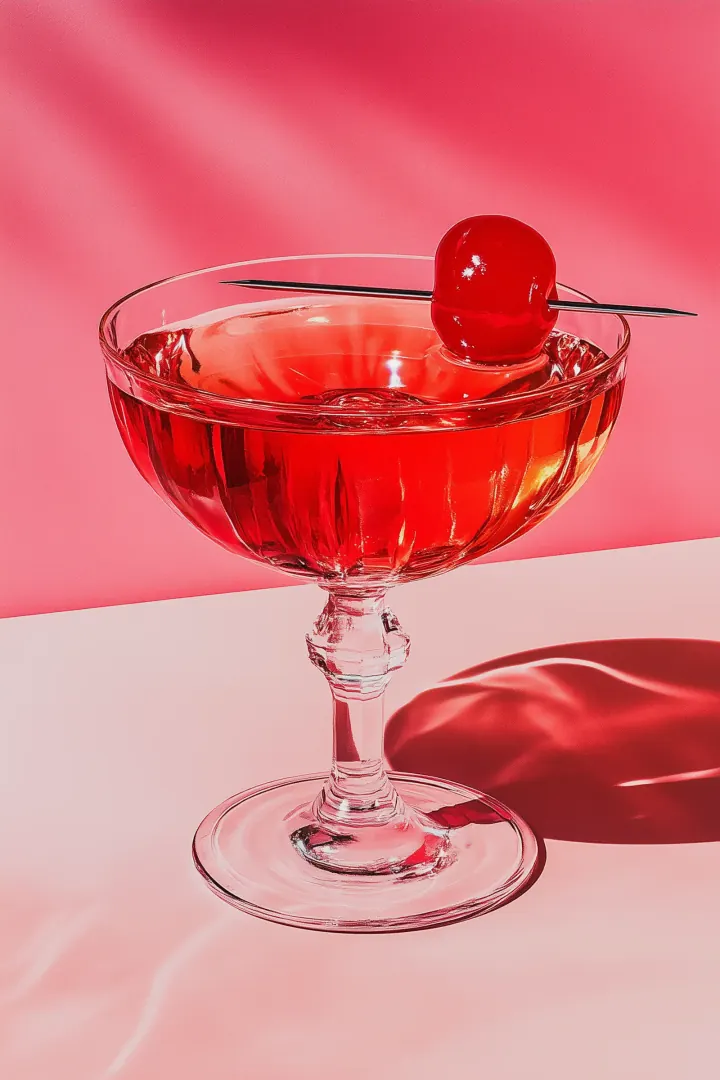
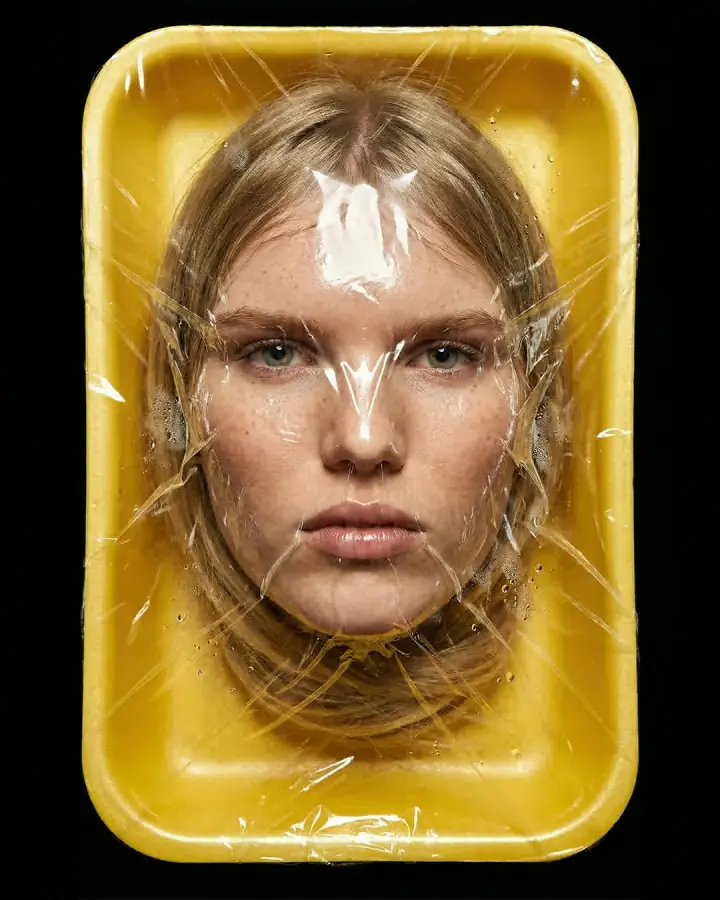
Swap an object, background, material, color, outfit, prop, or visual element.
Remove unwanted elements while rebuilding the surrounding scene.
Change the overall visual treatment while preserving the main subject or composition.
Place a subject or product into a different environment.
Adjust lighting, colors, details, framing, materials, copy, or other focused parts of the image.
GPT Image 2 is useful for visuals where typography, information hierarchy, and layout are part of the image itself.
Combine headlines, imagery, secondary text, and visual hierarchy.
Turn information into a more structured visual composition.
Create promotional visuals, announcements, covers, and campaign concepts.
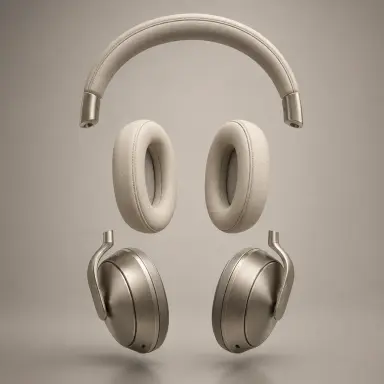
Combine product imagery, messaging, composition, and visual direction.
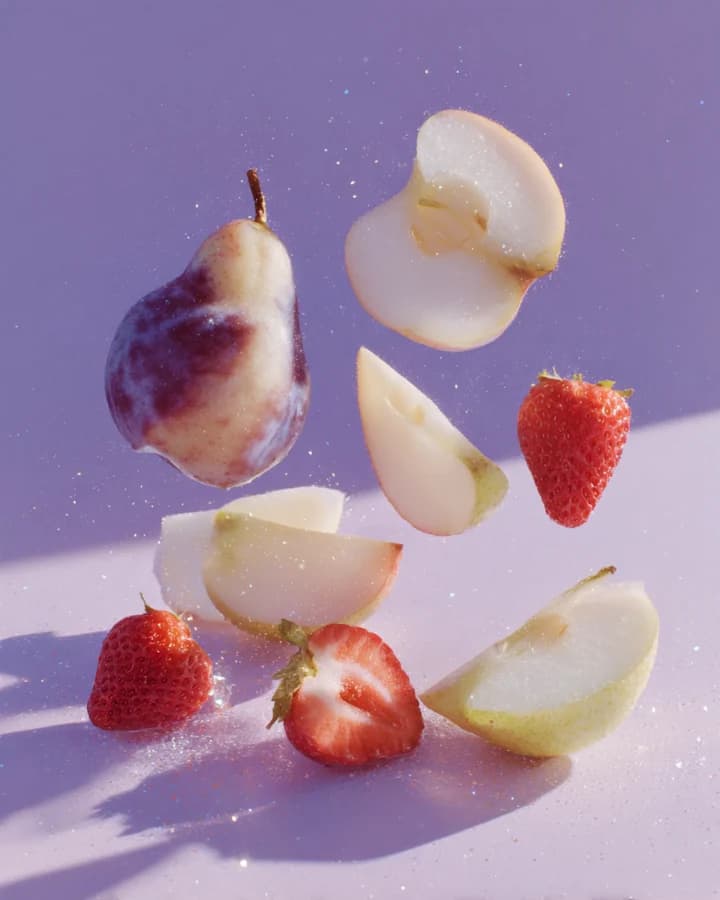
Explore editorial, presentation, book, event, or campaign cover concepts.
Generate visual concepts that combine imagery with text across different languages.
Text rendering is substantially more capable than earlier image-generation workflows, but important spelling, typography, hierarchy, and alignment should still be reviewed before production use.
GPT Image 2 is not limited to only a few fixed output dimensions at the model level.
Model-Level Size Support
Popular Model-Level Examples
1024 × 1024
Square
1536 × 1024
Landscape
1024 × 1536
Portrait
2048 × 2048
2K Square
3840 × 2160
4K Landscape
2160 × 3840
4K Portrait
These are GPT Image 2 model-level capabilities. The image sizes currently available to DoMax AI users must always follow the options shown in the live generator above.
Create studio images, lifestyle concepts, campaign scenes, background variations, and presentation-ready product visuals.
Develop advertising concepts, landing-page visuals, campaign images, promotional creative, and visual variations.
Combine imagery, text, hierarchy, and visual design for posters, covers, announcements, and promotional assets.
Refine strong existing images without recreating every part of the composition from the beginning.
Use product, subject, composition, or visual references when exact creative direction matters.
Explore diagrams, infographics, presentation visuals, educational graphics, and other information-driven imagery.
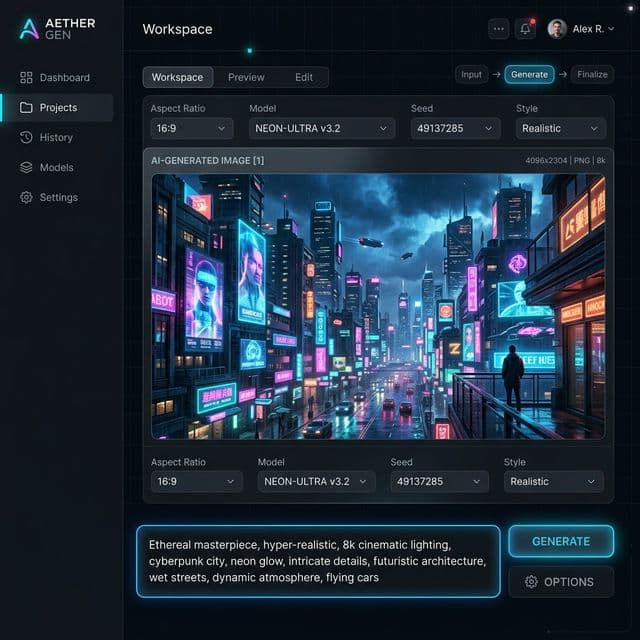
Use the live DoMax AI generator to select the model and review the controls currently available.
01
Select the model when you need its generation, reference-image, editing, or flexible-size workflow.
02
Generate from text or upload an image when using an editing or reference workflow.
03
Define the subject, environment, composition, lighting, style, materials, colors, text, and important constraints.
04
Choose from the size, quality, output, background, or other controls currently available in the DoMax AI generator.
05
Check composition, text, subject details, reference fidelity, and visual hierarchy. If most of the result works, request a focused edit instead of starting over.
Explain what the finished image should look like instead of relying on isolated keywords.
State where important objects belong, how large they should appear, and how the scene should be framed.
Explain which uploaded image defines the product, subject, composition, or visual direction.
For posters and graphics, provide the exact wording and avoid unnecessary copy in a single generation.
Change one important part at a time when preserving the rest of an existing image matters.
Check typography, hands, repeated objects, product geometry, logos, alignment, and other production-critical details.
Best for
Best for
For a full model comparison and help choosing between available GPT Image models, visit the GPT Image family page.
Compare GPT Image modelsExplore visual directions for different goals, compositions, and design formats. These are illustrative media, not verified model outputs.
Previous-generation workflow
Create and edit images with the established GPT Image 1.5 model for general-purpose visual generation and editing.
Explore GPT Image 1.5Turn prompts and visual references into product imagery, photography, posters, marketing assets, illustrations, structured graphics, and edited visuals.