AI Image to Video Generator
Turn Images into Cinematic AI Videos Online
Create dynamic videos from photos, product images, artwork, and illustrations with DoMax AI. Use multiple leading AI video models for fast image to video generation online — start with free trial credits, no credit card required.
What Is DoMax AI Image to Video Generator?
DoMax AI Image to Video Generator is an online tool that turns static images into dynamic AI videos. Upload a photo, product image, portrait, artwork, or illustration, and create video content with realistic motion, camera movement, and cinematic visual effects.
Unlike a basic slideshow, image to video AI analyzes the subject, scene, depth, and visual context of your image to generate motion that feels more natural. It can help animate product shots, portraits, landscapes, brand visuals, concept art, and other static assets.
DoMax AI is built for creators, marketers, e-commerce brands, agencies, and teams that need fast image to video creation without filming or complex editing. Use it to create product ads, social media clips, animated visuals, creative showcases, and storytelling videos online.
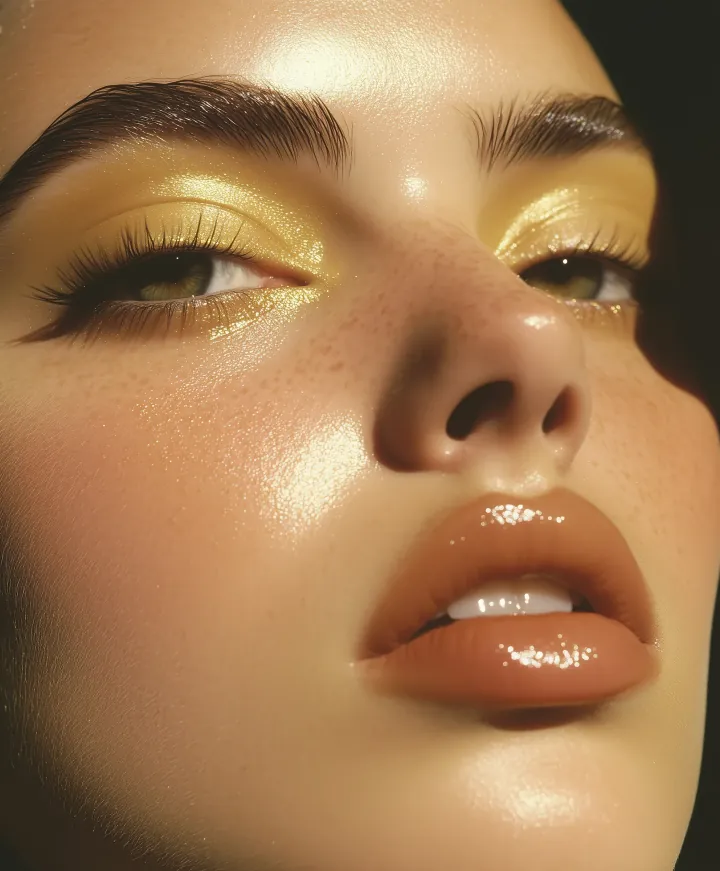
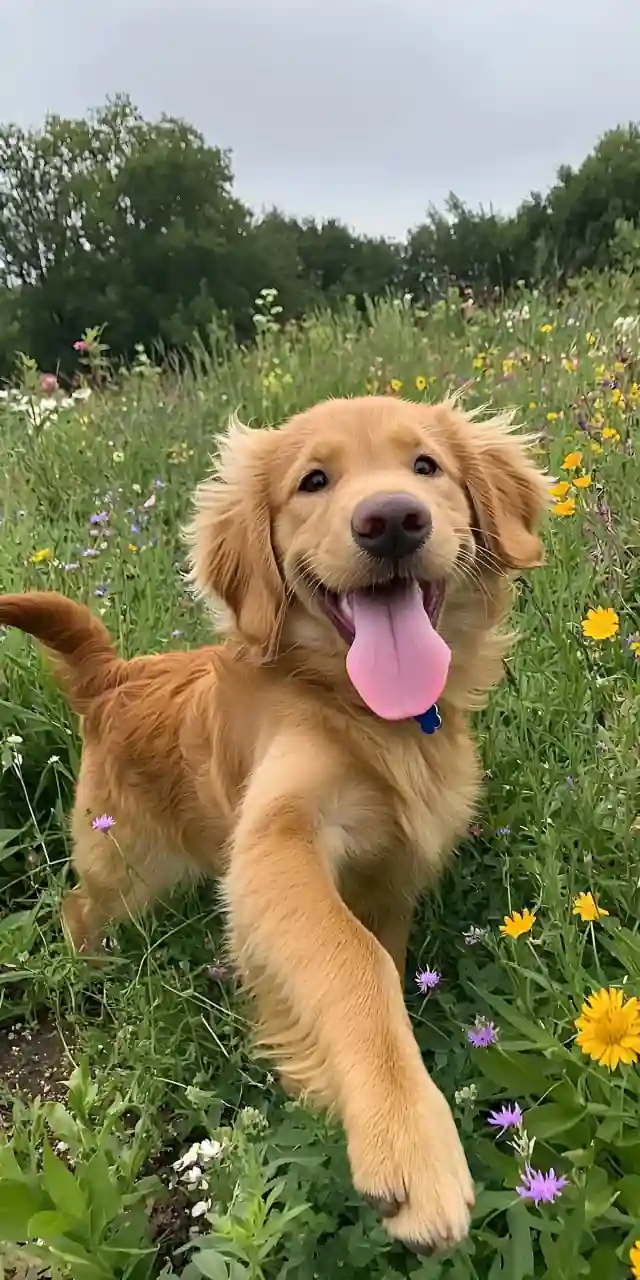
What Can You Create with AI Image to Video?
Use DoMax AI Image to Video to turn product photos, portraits, travel shots, artwork, illustrations, and campaign visuals into dynamic videos for ads, social media, product showcases, and visual storytelling.
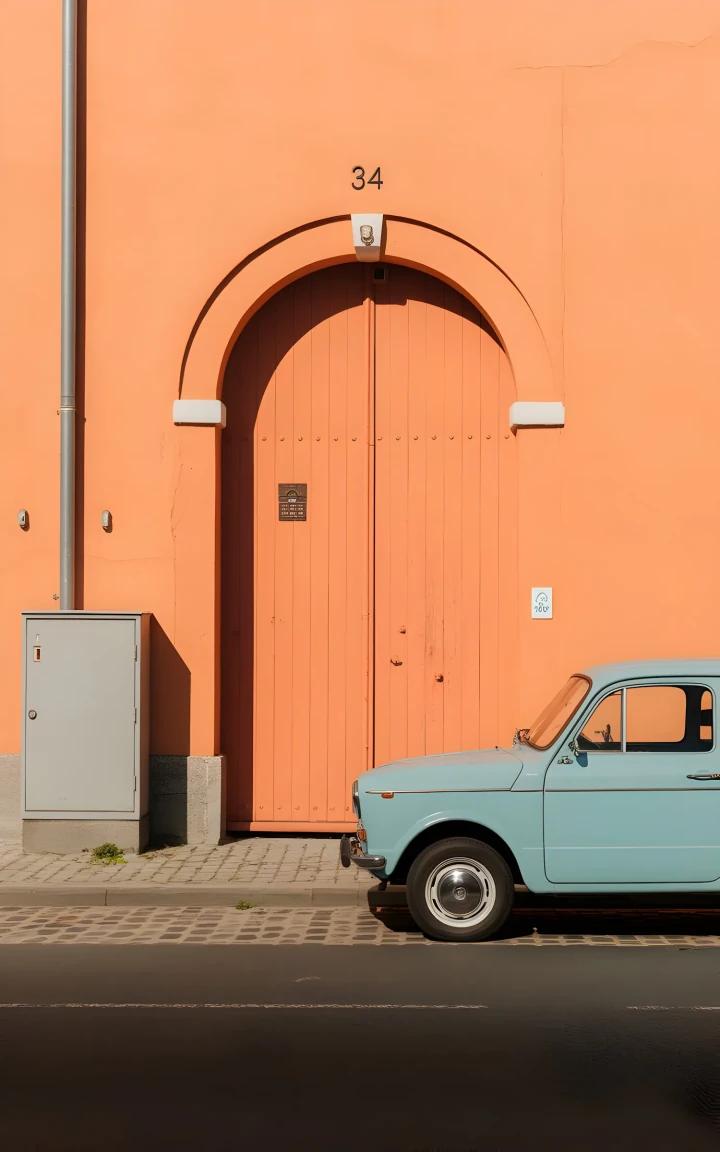
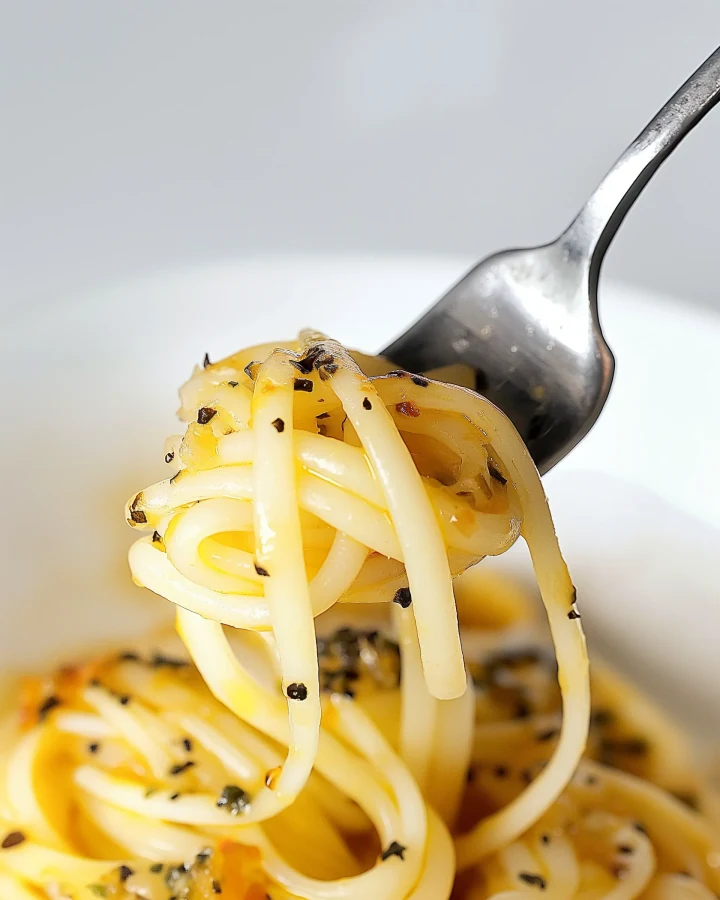
Turn Product Photos into Video Ads
Use AI image to video to animate product photos into smooth, ad-ready clips for TikTok, Instagram, Amazon, Shopify, and e-commerce campaigns. No studio. No filming. Just upload and create.
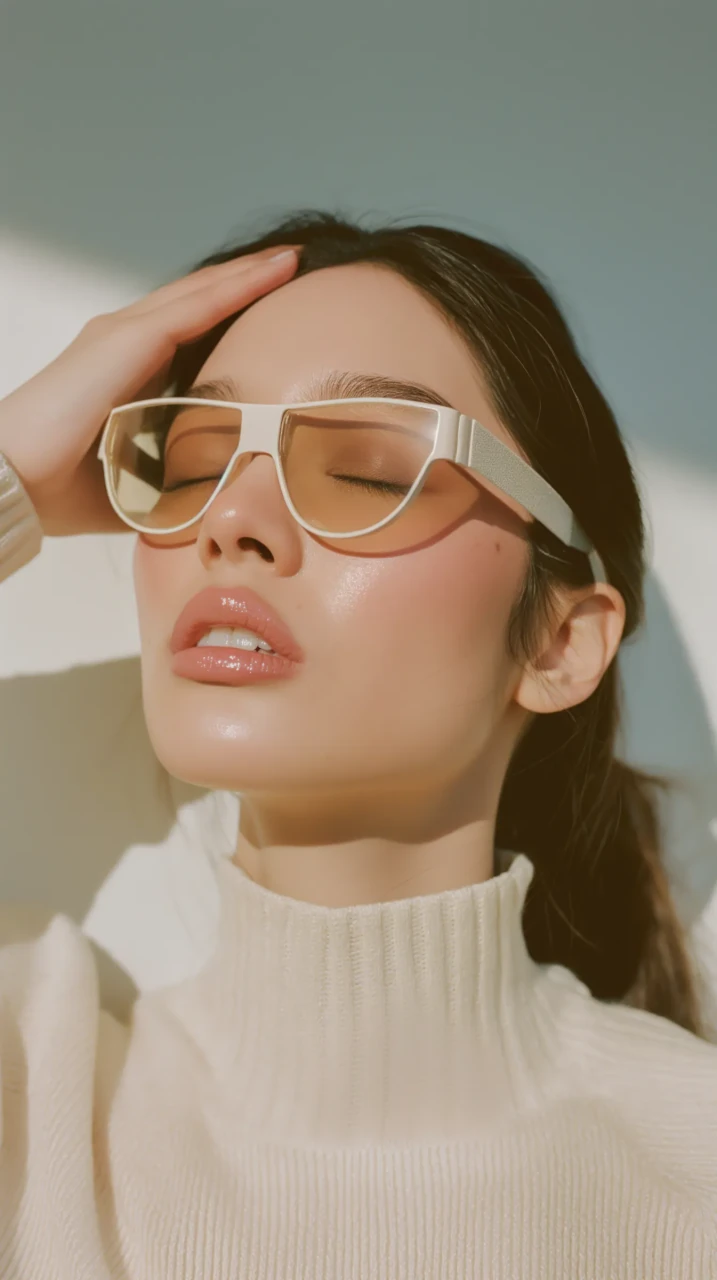
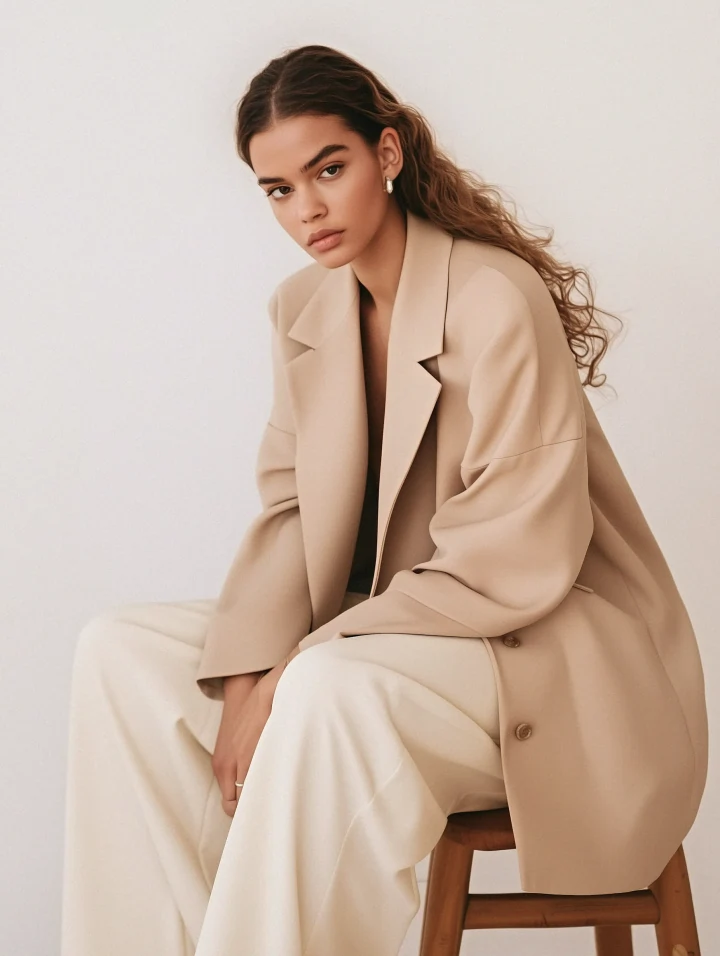
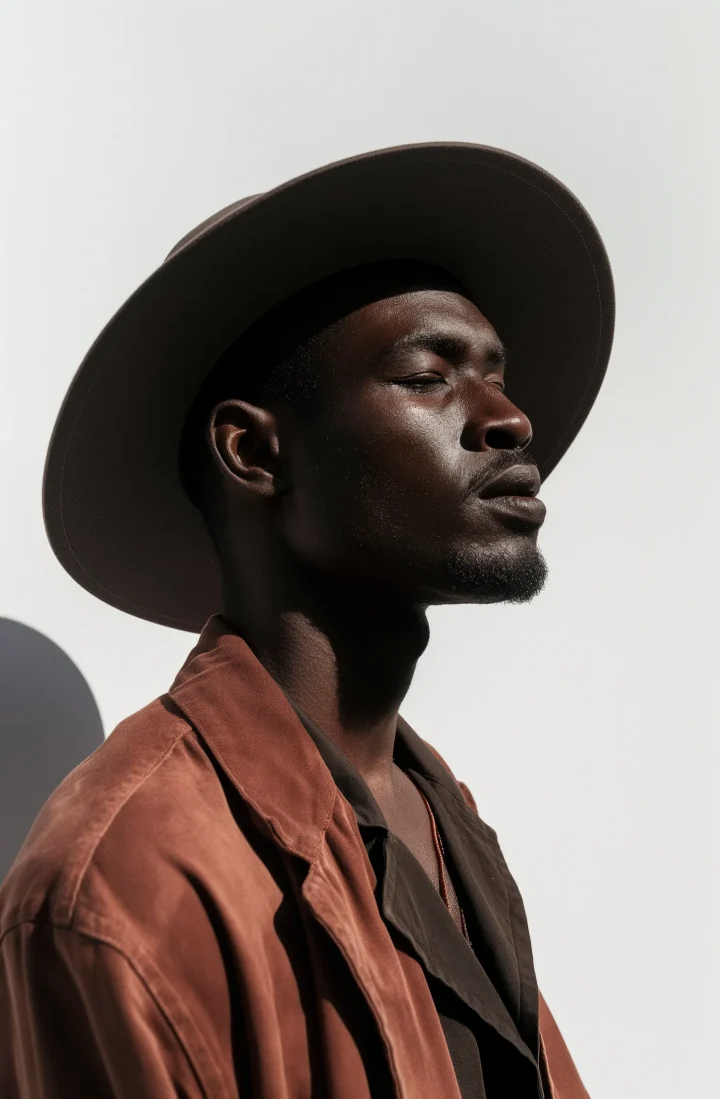
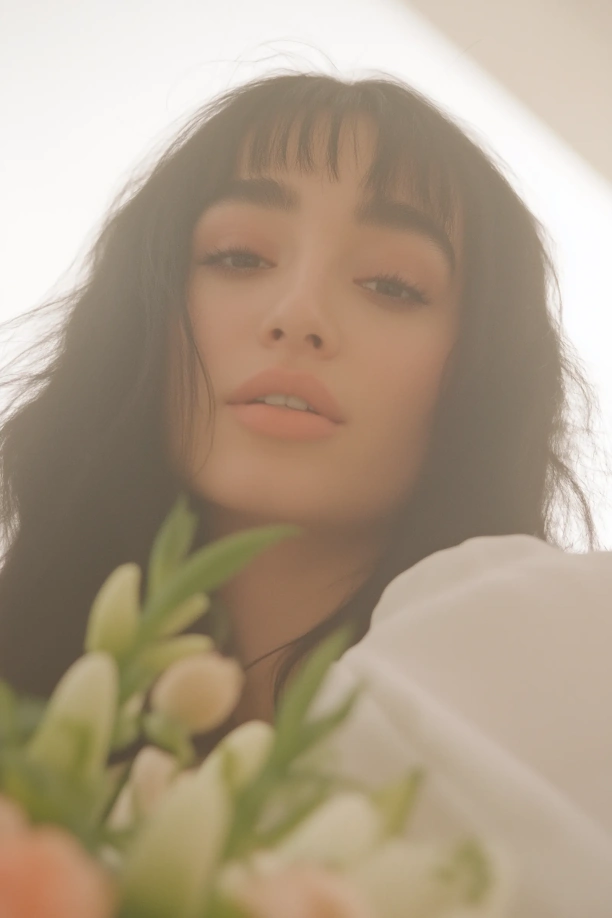
Turn Portraits into Natural AI Videos
Upload a portrait and use AI image to video to add subtle motion, soft expressions, blinking, and lifelike detail for social media, memories, and creative storytelling.
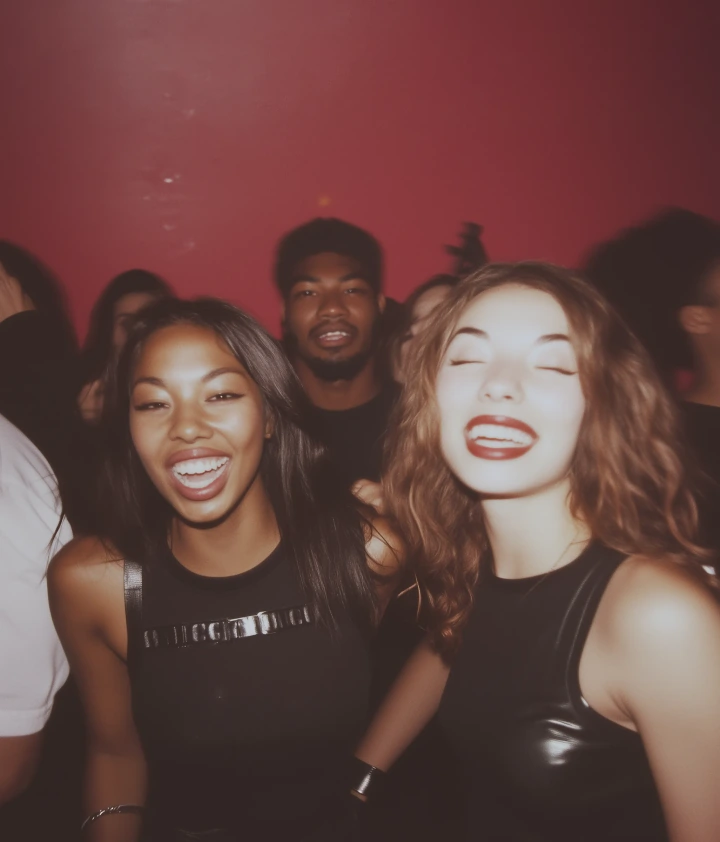
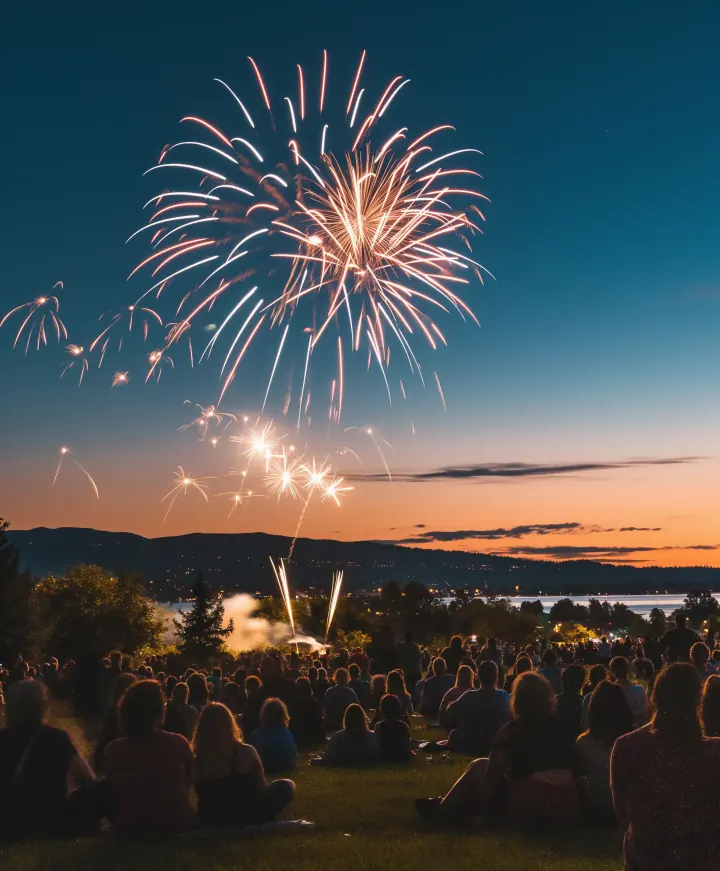
Turn Travel Photos into Cinematic Videos
Transform travel and landscape photos into cinematic AI videos with moving clouds, flowing water, swaying trees, and smooth camera motion. Perfect for Instagram Reels, YouTube Shorts, travel stories, and destination content.
Create Real Estate Videos with AI Image to Video
Transform property photos into cinematic virtual tour clips with smooth camera motion, slow push-ins, orbit shots, and realistic depth. Perfect for listings, property presentations, investor decks, and social media previews.
Create Art Videos with AI Image to Video
Use AI image to video to animate illustrations, digital art, paintings, and watercolors with smooth motion, lighting effects, and cinematic camera movement. Perfect for portfolios, exhibitions, social media, and creative campaigns.
How to Turn Images into Videos with DoMax AI
Create AI Image to Video clips online in three simple steps. Upload an image, describe the motion you want, choose your settings, and open the finished video to review the result.
Upload Your Image
Upload a JPG, PNG, or WebP image. Product photos, portraits, landscapes, artwork, and marketing visuals can all be turned into AI Image to Video clips.
New users get free credits to start creating.
Describe Motion and Choose Settings
Use the prompt box to guide your AI image to video result, such as a slow push-in, orbit shot, moving clouds, flowing water, product rotation, or subtle facial movement. Then choose the available model, resolution, duration, and other video settings.
Adjust your prompt and settings to control the final AI image to video style.
Generate and View Your AI Image to Video
Generate your AI Image to Video result, then open the finished video in your browser to preview the motion, quality, and final output.
AI Image to Video Prompt Tips
For better AI Image to Video results, describe the motion you want clearly. Instead of writing "make it move," use a prompt like: "slow cinematic push-in, soft lighting, subtle background movement, realistic depth."
Describe Camera Movement
Tell the model how the camera should move. Try phrases like slow push-in, orbit shot, gentle zoom, handheld motion, or cinematic drift for more controlled AI image to video results.
Add Subject Motion
Describe what should move in the image, such as blinking eyes, turning heads, flowing hair, rippling water, moving clouds, or rotating products. Clear subject motion helps the video feel more intentional.
Control Lighting and Atmosphere
Guide the mood with lighting and atmosphere details, such as soft lighting, golden hour, dramatic shadows, glowing reflections, or a calm cinematic feel.
Keep Prompts Clear and Specific
Short, specific prompts usually work best. Combine camera movement, subject action, lighting, and scene depth into one clear AI image to video instruction.
Why Choose DoMax AI for AI Image to Video?
Create better AI Image to Video results with multiple leading AI video models, flexible settings, and prompt-based motion control — all in one online workspace.
Multiple AI Video Models
Different images need different models. DoMax AI lets you choose from multiple leading AI video models for product motion, portrait animation, cinematic scenes, stylized clips, and creative storytelling.
Built for Real Use Cases
Create AI image to video clips for product ads, social media posts, portraits, landscapes, artwork, real estate previews, travel content, and branded campaigns.
Prompt-Based Motion Control
Guide the result with natural prompts. Describe camera movement, subject motion, lighting, background animation, or scene atmosphere to match your creative direction.
Flexible Video Settings
Choose available options such as model, resolution, duration, and other generation settings before creating your video. This helps you balance quality, cost, and output style.
Fast Online Generation
Upload an image, write a prompt, choose your settings, and generate online. No filming, editing software, or complex production workflow required.
From Static Images to Ready-to-Use Videos
Turn product photos, portraits, artwork, and creative visuals into polished AI Image to Video clips for ads, social media, presentations, and visual storytelling.
DoMax AI Image to Video FAQs
Find quick answers about AI Image to Video generation, supported image types, prompts, video quality, free credits, downloads, and commercial use.
What is DoMax AI Image to Video?
How does DoMax AI Image to Video Generator work?
What images can I upload?
What can I create with AI Image to Video?
How do I write a good AI Image to Video prompt?
Can I choose different AI video models?
Can I adjust video settings before generation?
Can I download my AI Image to Video result?
Is AI Image to Video free to use?
Can I use AI Image to Video for commercial projects?
Create Your First AI Image to Video Today
Upload an image and use your free credits to generate your first AI video clip online with DoMax AI.